Tuck
Samsung Galaxy phones have more built-in ways to hide photos than most Android phones. Here are the three worth using, and how to pick.
Quick answer: for a free, built-in option with its own lock, use Secure Folder. For encrypted backups you control and a vault that works on any phone, use an encrypted vault app.
1. Secure Folder
Secure Folder is a locked space on your Galaxy with its own PIN, password or pattern. (Samsung)
Set it up:
- Open Settings > Security and privacy > More security settings > Secure Folder.
- Sign in to your Samsung account if asked.
- Choose a PIN, password or pattern, and decide whether to allow reset with your Samsung account.
Move photos in:
- Open Gallery and touch and hold the photos.
- Tap More > Move to Secure Folder.
Photos only stored in the cloud can't be moved; they need to be on the phone or SD card first.
Worth knowing: Samsung says new Secure Folder backups are no longer supported, and it only exists on Samsung phones. More in Secure Folder vs a vault app.
2. Google Photos Locked Folder
If you use Google Photos on your Galaxy, Locked Folder keeps photos out of your library behind your screen lock.
- Open Google Photos, go to Collections, and set up Locked Folder.
- Select photos, open the menu, and choose Move to Locked Folder.
It can optionally back up, using Google's standard encryption. Anyone with your phone PIN can open it. (Google Photos Help)
3. An encrypted vault app
A vault app gives photos their own lock and their own encryption key, and the good ones back up encrypted to your own cloud. It also works if your next phone isn't a Samsung.
Hide photos on Samsung with Tuck
- Install Tuck from Google Play and create a vault with a passphrase. Save the 24-word recovery key.
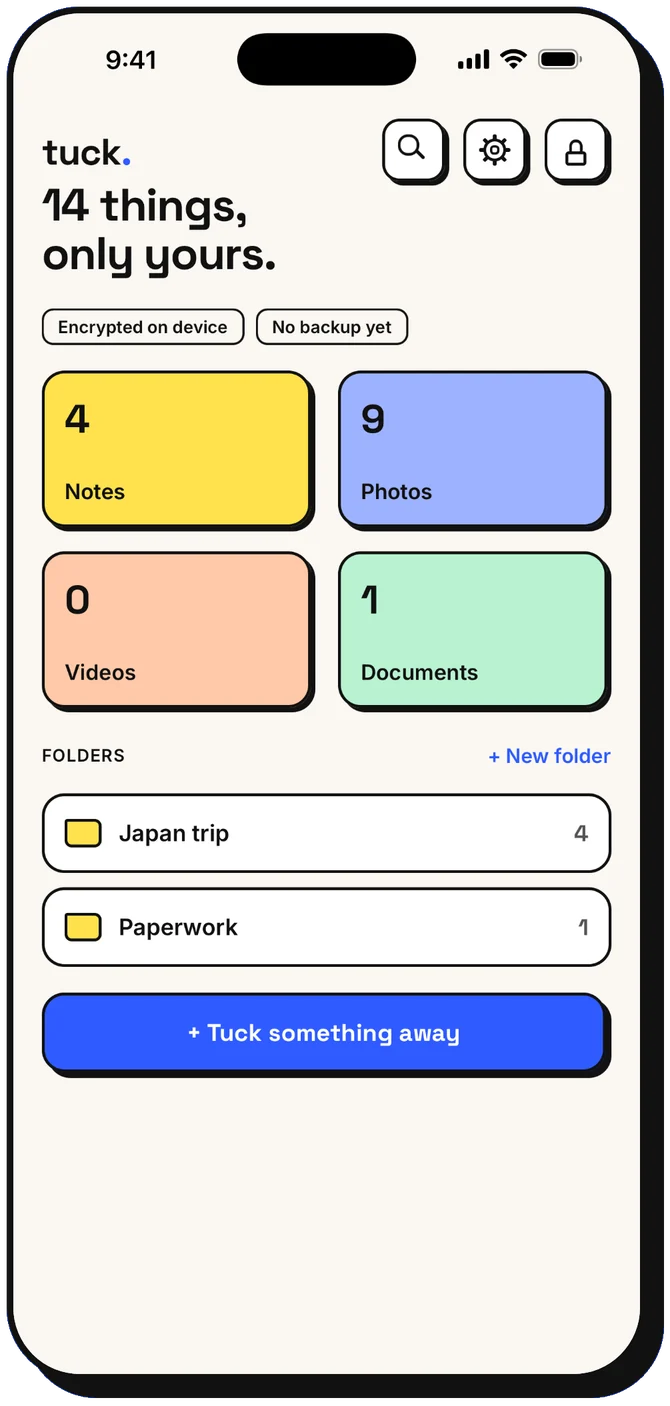
- Tap Tuck something away, select photos and videos from your gallery, and let Tuck remove the originals.
- Turn on fingerprint unlock and auto-lock.
- Turn on backup: your vault is encrypted on the phone, then saved to your own Google Drive.
Which should you use?
- Staying on Samsung and want it free: Secure Folder.
- Already use Google Photos for everything: Locked Folder.
- Want encrypted backups, no account, and a vault that moves with you: an encrypted vault like Tuck.
FAQ
How do I hide photos on Samsung without an app?
Use Secure Folder or Google Photos Locked Folder, both built in. Secure Folder has its own lock; Locked Folder uses your screen lock.
Where are hidden photos on Samsung?
Photos in Secure Folder are in the Secure Folder app, which you open from the Apps screen (unless you've hidden its icon). Locked Folder photos are in Google Photos under Collections.
Do hidden Samsung photos show up in Google Photos?
Photos moved to Secure Folder no longer appear in your main Gallery, and an app outside Secure Folder can't see them.