Tuck
Your iPhone can hide photos on its own, and for many people that's enough. Here's how to do it, how to make it harder to find, and when it's worth using an encrypted vault instead.
Quick answer: select the photo, tap the ... menu, tap Hide. It moves to the Hidden album, which is locked with Face ID, Touch ID or your passcode. To keep photos private from someone who knows your passcode, use a vault app with its own passphrase.
Hide photos with the Hidden album
- Open Photos and select the photos or videos you want to hide.
- Tap the ... (More) button.
- Tap Hide, then confirm.
The photos disappear from your library and go to the Hidden album under Utilities. Apple locks the Hidden and Recently Deleted albums by default; they open with Face ID, Touch ID or your passcode. (Apple)
To unhide one, open the Hidden album, select it, tap ... and choose Unhide.
Hide the Hidden album itself
You can stop the Hidden album showing in Photos at all. Go to Settings > Apps > Photos (on older iOS versions, Settings > Photos) and turn off Show Hidden Album. Turn it back on when you need it.
What the Hidden album doesn't protect against
- Anyone who knows your passcode. The lock is your phone's own lock, so a partner, parent or kid with your passcode can open it.
- Shared and synced devices. With iCloud Photos on, hidden photos sync to your other Apple devices signed in to the same Apple Account.
- The cloud. In iCloud, photos get Apple's standard protection unless you turn on Advanced Data Protection, which makes iCloud Photos end-to-end encrypted. (Apple)
- Notes and documents. The Hidden album only holds photos and videos. You can lock individual notes in Notes, but IDs and contracts usually end up scattered in Files.
Use an encrypted vault for anything more private
A vault app gives your private photos their own lock and their own encryption key, separate from your phone's passcode. Look for one that encrypts on the phone, needs no account, and backs up only to your own iCloud. Our vault safety checklist covers what to check.
How to hide photos on iPhone with Tuck
Tuck is the vault we make, on iPhone and Android.
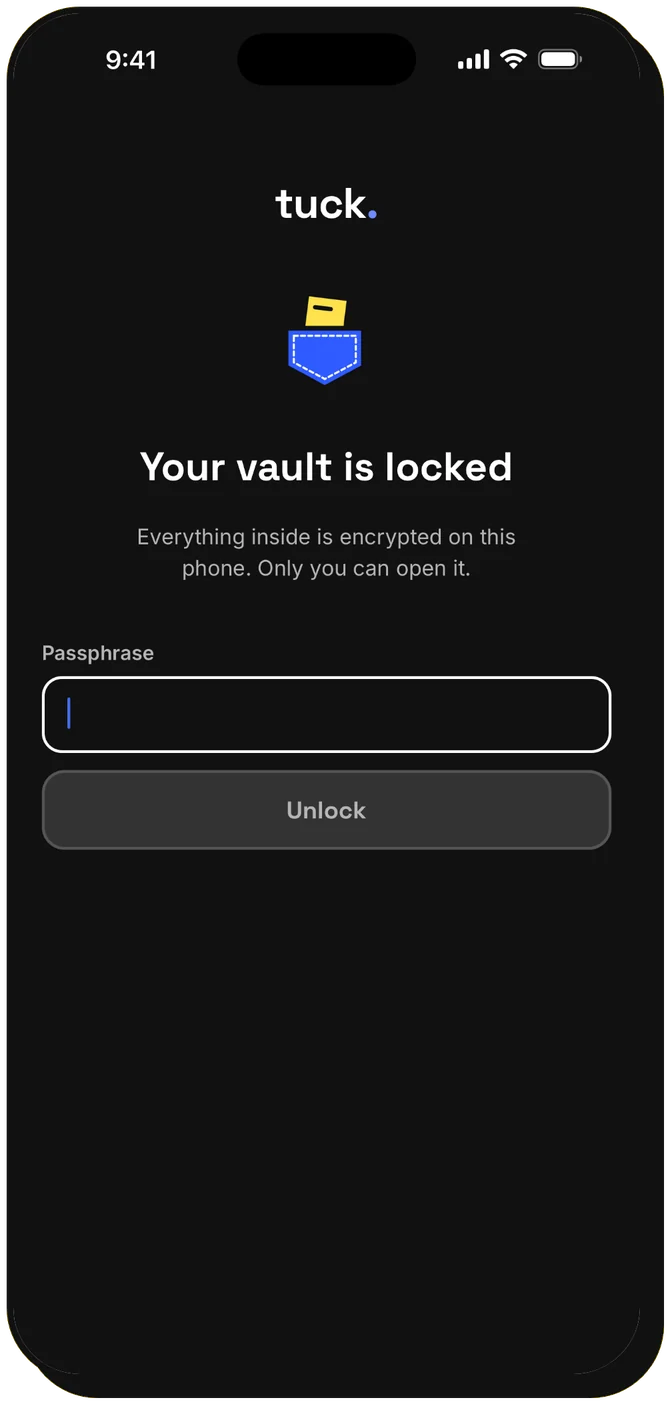
- Install Tuck from the App Store and create a vault with a passphrase. Save the 24-word recovery key it gives you.
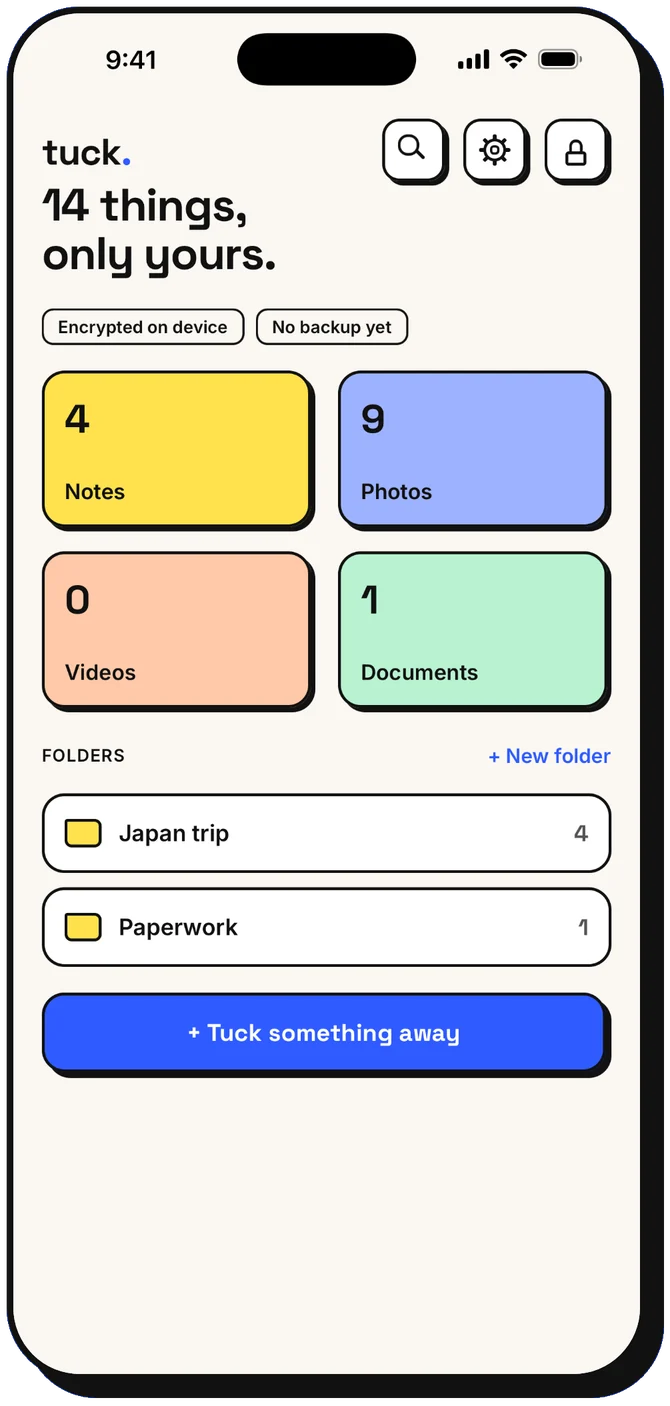
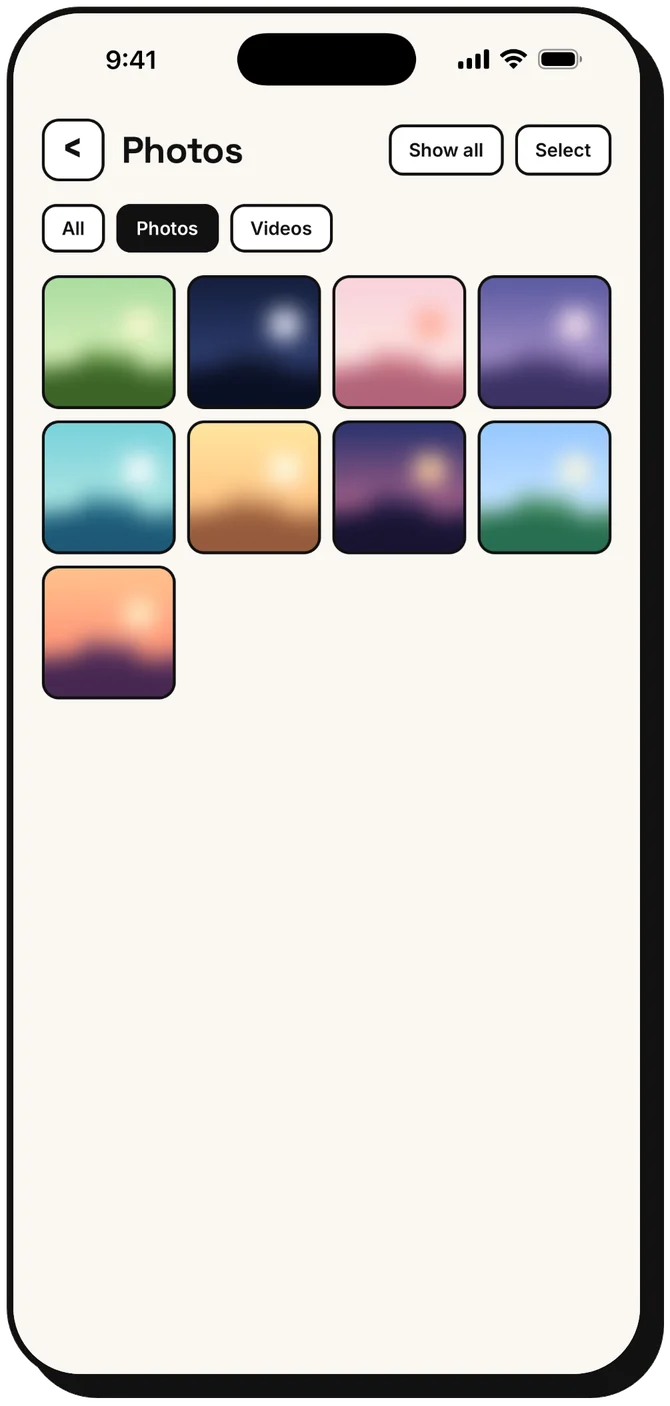
- Tap Tuck something away, choose photos or videos, and remove the originals from your library when Tuck asks.
- Turn on Face ID so opening the vault is quick, and auto-lock so it closes when you leave.
- Optionally switch Tuck's icon to a plain Calculator or Weather icon.
- Turn on backup: the vault is encrypted on your iPhone first, then saved to your own iCloud.
Tuck can also hold notes and documents, so your passport scan and private notes sit behind the same lock.
FAQ
Is the iPhone Hidden album private?
It's private from someone scrolling your library, and it's locked with Face ID, Touch ID or your passcode. It isn't private from anyone who knows your passcode.
How do I hide photos on iPhone without deleting them?
Use Hide from the ... menu. The photo moves to the Hidden album and isn't deleted. In Tuck, the photo is copied into the encrypted vault before the original is removed from your library.
Can I hide photos on iPhone with a separate password?
Not with the built-in Hidden album, which uses your phone's own lock. A vault app like Tuck uses its own passphrase.
Do hidden photos show up in iCloud?
Yes. If iCloud Photos is on, hidden photos sync to your other devices and stay in the Hidden album there.